Backing up client websites
Description
Follow these steps when backing up a clients website
- Create a folder on your local computer and name is the name of the website and date (Example IF Media 10_8_21)
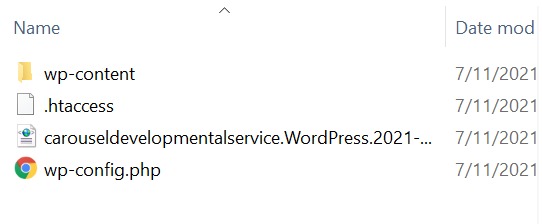
- Log into client’s file server via filezilla and download a backup copy of the following files. These files will be used to restore the website in case something goes wrong. Drag these files to your local computer in the folder that you created from step one.
- .htaccess (From filezilla)
- wp-config.php (From filezilla)
- From the wp-content Folder (From filezilla) Copy the Following
- Active Theme
- Uploads Folder
- Plugins Folder
- WordPress XML Export (from WordPress Dashboard)
- Update WordPress and plugins via the admin dashboard
- Create another folder on your local computer and name is the name of the website and date (Example IF Media2 10_8_21)
- Take another backup of the website and the following files. Drag these files to your local computer in the folder that you created from step four.
- wp-content
- .htaccess
- WordPress XML Export
- wp-config.php
- Review the client’s website to ensure that things are viewing and properly working on mobile and desktop
- If everything is working on then Upload the files from your local computer to the Backups Directory for IF Media via FTP
- Email the client and inform them that their website has been updated and ask them if they need any additional services at the moment
- Finished